Everything you need to know about your cPanel hosting: what it is, what it's for and how to manage your website, professional email, databases and install WordPress with one click. A clear, step-by-step guide.
The control panel that makes managing your hosting simple, with no server knowledge needed.
cPanel in a nutshell
cPanel is the hosting control panel most used in the world. It's a visual web screen from which you manage your entire site without touching commands or technical skills: create your professional email (nombre@tudominio.com), upload files, install WordPress, manage bases de datos, enable the SSL padlock and view your site's statistics.
In simple terms: if your hosting were a car, cPanel is the dashboard — from there you control everything with clear buttons, without opening the hood.
And what is hosting?
El hosting (web hosting) is the space on a server where your site's files live so it's available on the internet 24/7. When you get hosting with RedVozTelecom, we give you your cPanel account so you can manage that space your way.
cPanel vs WHM: what's the difference?
cPanel — It's the panel for the client: it manages one hosting account (one site, its emails, etc.). It's the one you use for your site.
WHM (WebHost Manager) — It's the panel for the administrator/reseller: creates and manages many cPanel accounts, sets packages, limits and resources. It's the "panel of panels".
Reselling hosting? With your reseller account you manage your clients from WHM and each client logs into their own cPanel.
How to access your panels
All your logins are on the RedVozTelecom home page, under 🔐 Accesos & Paneles de Control.
Log in to your cPanel
From the RedVozTelecom home page → 🔐 Accesos & Paneles de Control → Web Hosting (cPanel). There you log in with the username and password we gave you when your hosting was activated, and you manage your whole site.
To see your services, renewals, invoices and open support tickets, go to your Client Area.
Security tip: save your logins in bookmarks and enable two-step verification (2FA) inside cPanel.
The cPanel dashboard
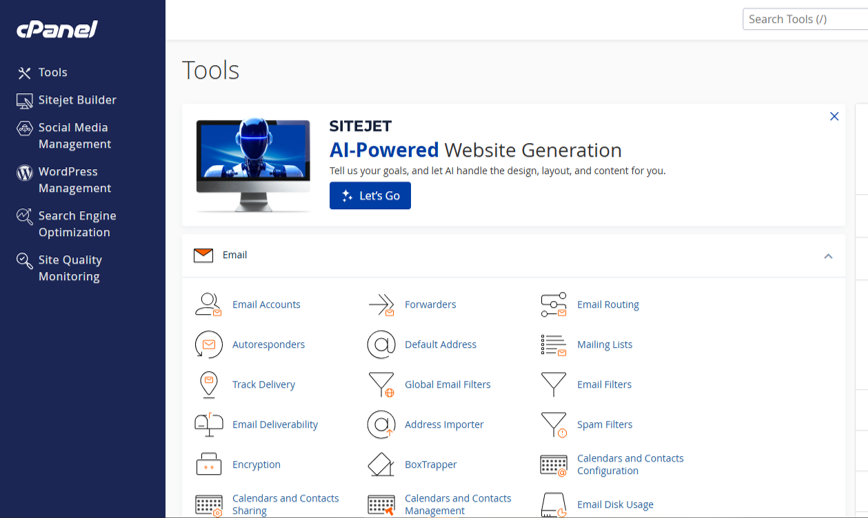
A single screen with everything grouped by topic. You search, click and you're done.
How it's organized
When you log in you'll see a search bar at the top (type what you need and it appears instantly), the tools grouped in the center, and on the right, the general information of your account (main domain, SSL status, resource usage). The main groups are:
Give your brand credibility with your own email on your domain, not on gmail.
What you can do
Create accounts — ventas@tudominio.com, info@tudominio.com, as many as you want (depending on your plan).
Webmail — Read and write from the browser, or set it up in Outlook, Gmail or your phone.
Forwarders — Have an email automatically forwarded to another address.
Autoresponders — The classic "I'm on vacation, back on…".
Filters and antispam — Rules to sort and block junk mail.
Why it matters: an email @tudominio.com builds trust, strengthens your brand and improves your message delivery. Don't have a domain yet? Get yours in the Domains & DNS. 👇
Domains & DNS
Your address on the internet (tudominio.com) and how to point it to your hosting.
What is a domain?
The domain is your site's name on the internet — for example tuempresa.com. It's your address: people type it to reach your site, and you also use it for your professional email (nombre@tuempresa.com). In a single account you can have several domains: one main domain and additional ones for more projects or brands.
Search and register your domain
Type the name you want and check instantly if it's available. If it is, you register it and it's added to your account:
Already have a domain registered elsewhere? You can also transfer it to RedVozTelecom and manage everything from one place.
What are DNS?
Los DNS (Domain Name System) are like the phone book of the internet: they translate your name tuempresa.com into the address (IP) of the server where your site lives. Thanks to them, when someone types your domain, they reach your site and email.
Los DNS records most common ones (you can edit them in cPanel → DNS Zone Editor):
Registro
What it's for
A
Points your domain to an IP address (to your server).
CNAME
Makes a subdomain an alias of another name.
MX
Indicates which server your email goes to.
TXT
Notes and verifications (SPF/DKIM, so your email doesn't land in spam).
NS (Nameservers)
Define who manages the DNS of your domain.
Point your domain to your hosting
For your domain to show your site on this hosting, you set its nameservers (the ones we give you when the service is activated). If you buy the domain with us, it's pointed automatically; if you have it with another provider, you change the nameservers where you registered it.
DNS questions?Write to us and we'll help you point your domain or set up your records.
Files, backups and domains
Upload your site, make backups and add domains — all from the panel.
File manager and FTP
El File manager is a web explorer where you can upload, download, create, edit, move, copy, rename and delete your site's files. Your site lives in the folder public_html. If you prefer, you can also connect via FTP with programs like FileZilla.
Backups
From Backups you download a full backup of your site and emails, or restore it if something goes wrong. Back up often — it's your safety net.
Domains
Subdomains — Create blog.tudominio.com, tienda.tudominio.com, etc.
Addon domains — Host several sites in the same account (depending on your plan).
Redirects — Send one address to another automatically.
DNS Zone Editor — Adjust A, CNAME, MX, TXT records of your domains.
Databases (MySQL)
The "brain" where your WordPress or store keeps everything.
What you do here
Most modern sites (WordPress, stores, forums) use a MySQL database to store pages, products, users and orders. From cPanel you can:
Create databases y users with their password.
phpMyAdmin — View and manage the content of the tables (advanced).
Back up and restore your databases.
Don't worry: if you install WordPress with Softaculous (below), the database is created automatically — you don't have to touch anything.
Softaculous: 380+ apps in one click
A "marketplace" of programs inside your cPanel — install WordPress, stores, virtual classrooms, CRM and more in a minute.
What is Softaculous
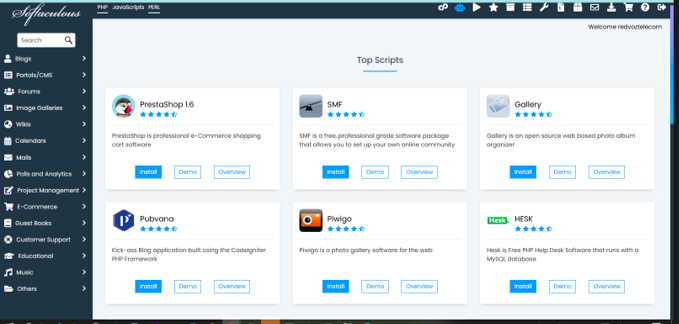
Softaculous is your hosting's application installer: more than 380 programs ready to install with one click, with nothing to set up by hand (the database is created automatically). You pick the app, click Install and in a minute your site is running. It also notifies you of updates and can make automatic backups.
You'll find it in cPanel inside the group Software → Softaculous Apps Installer.
Softaculous — popular apps ready to install in one click
What is WordPress and what can you do with it?
WordPress is the system for building websites most used in the world (it powers over 40% of the internet). It's free, you don't need to code and it grows with you. With WordPress you can build:
Business sites and professional institutional pages.
Online stores (with WooCommerce): sell products, take card payments, manage inventory and shipping.
Blogs, magazines and news portals.
Portfolios, landing pages, bookings, memberships, courses and almost anything.
It has thousands of templates (themes) for design and plugins to add features (SEO, forms, store, security, speed). And you install it in a minute with Softaculous. 👇
Install WordPress step by step
In cPanel open Softaculous and choose WordPress → Install.
Choose the domain where you want it and leave the path empty if it goes in the root.
Enter the site name, your username and password administrator.
Click Install. In a minute you enter your new site at tudominio.com/wp-admin.
The most popular apps (there's one for everything)
Besides WordPress, Softaculous brings hundreds of programs sorted by category. Some of the most used:
And many more: they are 380+ applications in total (blogs, surveys, calendars, music, project management, e-learning…). Almost any idea you have, there's an app ready to install in one click.
Build your site with Artificial Intelligence
Don't want to install anything? Build your page or landing in minutes, with AI.
AI website builder (no code)
If you want a website or landing page fast and beautiful without installing or coding, RedVozTelecom has an AI website builder. You tell it what your business is about and the AI builds the design, structure and copy; you just tweak it to your liking and publish.
No code — You edit by dragging, like a visual editor.
Mobile ready — Looks great on phone and computer.
Ideal for landing pages, business sites, catalogs and promotions.
WordPress or AI? If you want full control and lots of growth (store, blog, plugins), go with WordPress (via Softaculous). If you want something fast and simple, use the AI Website Builder. You have both with your hosting!
Security and free SSL
Your site's 🔒 padlock and the tools to keep it protected.
Free SSL (the green padlock)
El SSL is what puts the padlock and the https:// on your site: it encrypts data and builds trust (and Google rewards it for SEO!). Your hosting includes free SSL with Let's Encrypt, which installs and renews automatically from cPanel. You don't pay extra for the padlock.
More protection included
IP blocking — Ban addresses that bother you.
Hotlink protection — Stop other sites from stealing your images.
Verificación en dos pasos (2FA) — A double lock to enter your panel.
SSH key manager and junk-mail filters.
Our server
Solid, up-to-date infrastructure so your site flies.
Specification
Detail
Hostname
servers.redvozhosting.com
Panel
cPanel & WHM (versión actual)
SSL
Let's Encrypt free and unlimited
Apps
Softaculous (installer of 380+ programs)
Stability: up-to-date cPanel = a secure, fast server with long-term support for your project.
FAQ
Do I need to know programming to use cPanel?
No. cPanel is visual; you do everything with clicks. And for sites like WordPress, Softaculous installs it for you.
Does the hosting include the padlock (SSL)?
Yes, free SSL with Let's Encrypt, which renews automatically. Your site comes with https:// and a padlock at no extra cost.
Can I create my emails @midominio.com?
Of course, from the Correo you create the accounts your plan allows and read them via Webmail or on your phone.
I forgot my cPanel password, what do I do?
Write to us and we'll reset it, or reset it yourself from your client area. Contact us here.
Can I move (migrate) my current site to this hosting?
Yes. In many cases we help you with the migration. Write to us and we'll look into it.
Hosting glossary
The terms you'll see in your hosting, explained simply.
Term
What it means
Hosting
The space on a server where your site's files live so it's on the internet.
Domain
Your site's name (tudominio.com); your address on the internet.
cPanel
The visual panel to manage your hosting (email, files, databases…).
WHM
The administrator/reseller panel that creates and manages several cPanel accounts.
DNS
The "phone book" of the internet: it translates your domain to the server's IP.
Nameservers
The servers that say who manages your domain's DNS.
SSL / HTTPS
The 🔒 padlock that encrypts your site and builds trust (and boosts SEO).
FTP
A way to upload/download files to your hosting with programs like FileZilla.
Base de datos (MySQL)
Where WordPress or your store keeps pages, products and users.
phpMyAdmin
A tool to view and manage your databases.
WordPress
The world's most used system for building websites.
Softaculous
The 380+ app installer in 1 click inside cPanel.
Webmail
Read and write your email @tudominio.com from the browser.
Subdominio
A section with its own name, e.g. blog.tudominio.com.
Backup
A backup of your site and emails to restore if something fails.
No results found. Try another word (e.g. "email", "WordPress", "SSL", "database").
Ready for your website?
Get your cPanel Hosting with free SSL and start today — with support from RedVozTelecom.
 · Hosting